How it works
Overview - Number Lookup
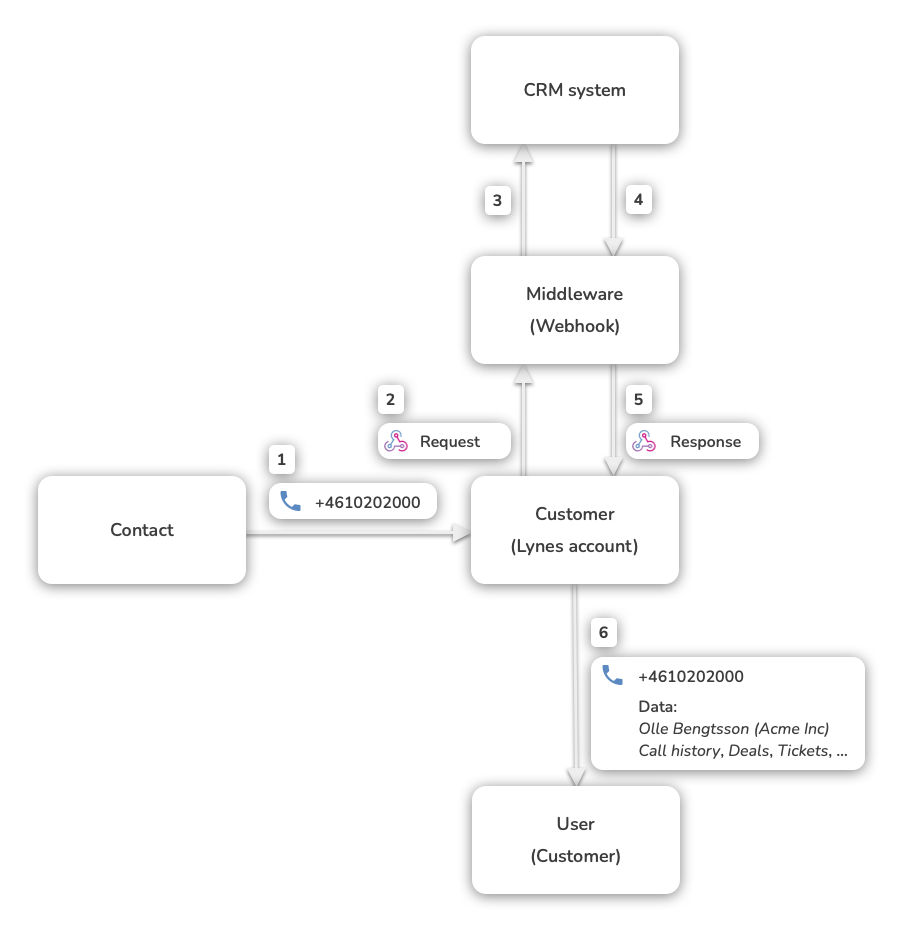
See the illustration below for an overview of the flow of events when a customer receives a call and the webhook for number lookup is called by the M8Com app.
Overview - Automatic Call Logging
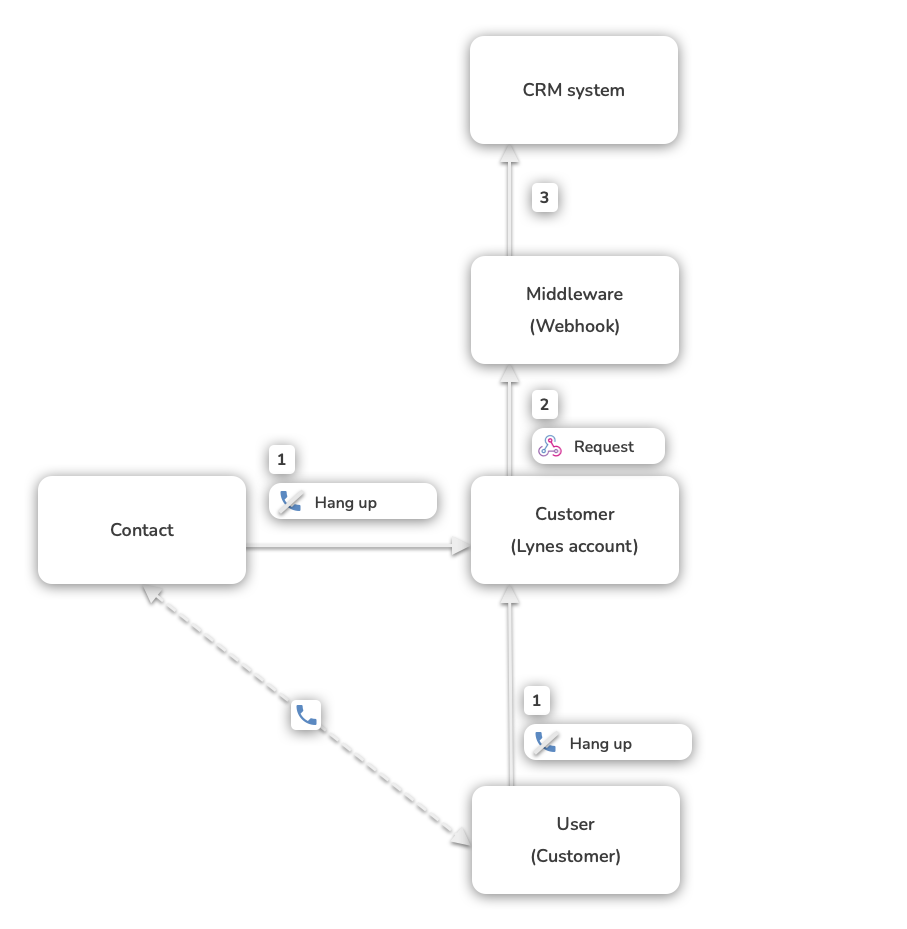
See the illustration below for an overview of the flow of events for automatic call logging. There is an ongoing call between a contact and a user, which is then hung up (by either part), which triggers a call to the webhook end point for automatic call logging, which is then handled by the middleware.
Webhook Setup for customers
Any customer with the Insights add-on can have a Webhook integration setup. The actual setup requires Superadmin permission and is handled by Customer Care. Once the Webhook is set up, the customer can see it and manage it in the Insights settings (Organisation Settings / Insights).
There are separate request end points to be set up for number lookup and automatic call logging, with the latter being optional.
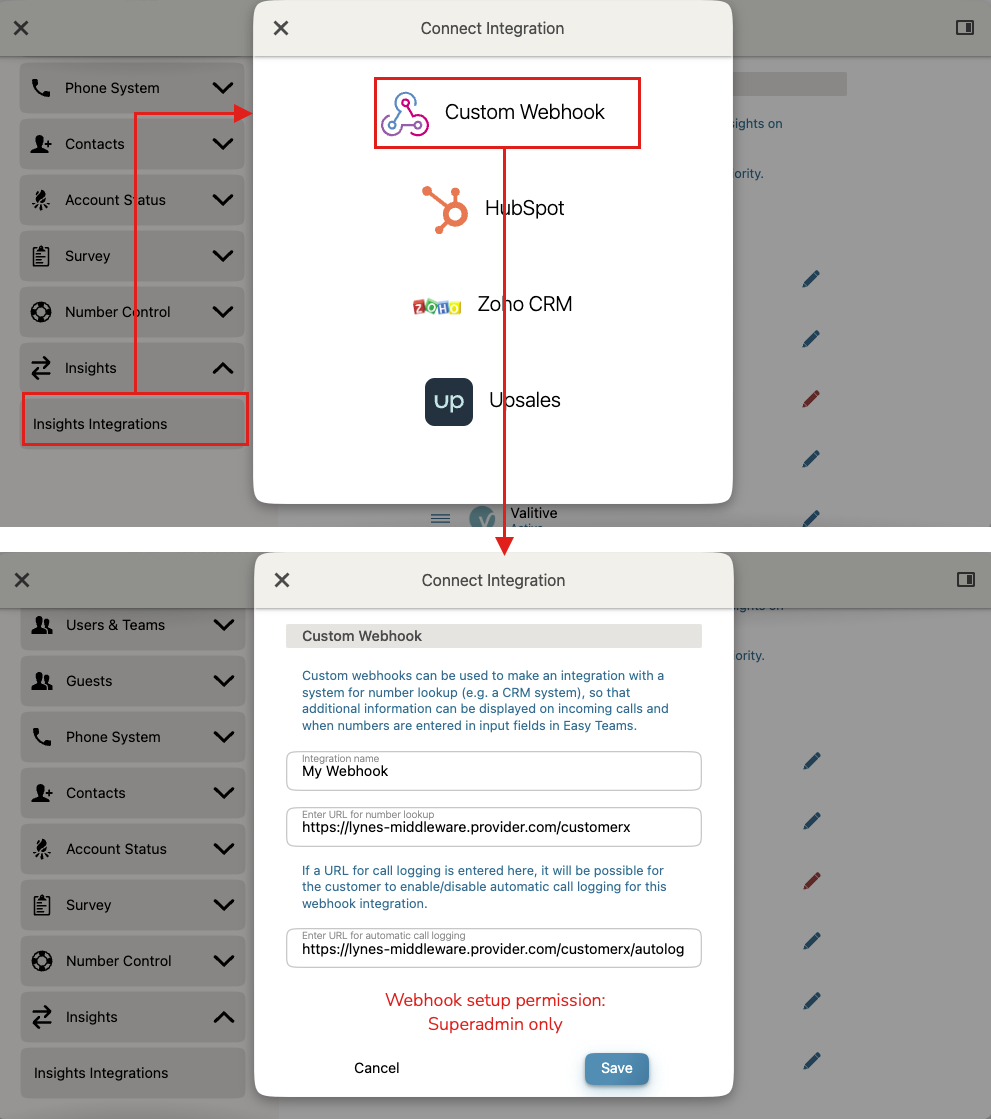
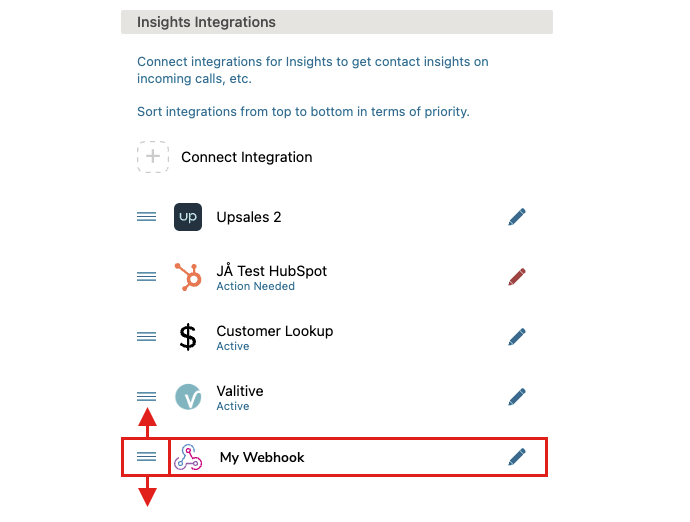
Looks like this, from the Superadmin’s perspective, when set up:
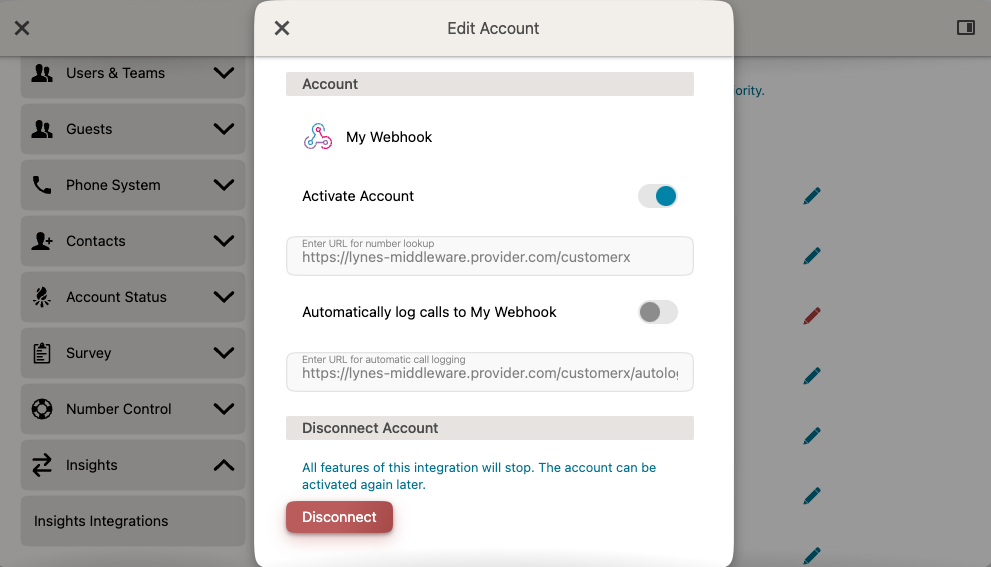
A Webhook integration can be sorted in terms of priority for number lookup in the same way as any other kind of Insights integration.
Number & custom ID lookup
M8Com calls the webhook automatically in the following cases:
- when the customer receives an incoming call
- when a phone number search is made (as a contact search or in the dialer)
- when presenting items in a call log
- when entering a phone number in number input fields (e.g. for redirects in IVRs)
- when a caller inputs numeric data via an Input Collector (optional)
- when a call log item connected to number input is displayed (optional)
Look-up data is cached by M8Com for 2 hours, so any changes made in the integrated system will not be reflected in M8Com. The caching is made to prevent request-flooding of the middleware.
When a response is received from the Webhook integration, the data is presented by M8Com in the same way as it would be for any other Insights integration (e.g. HubSpot or Upsales). The Webhook icon will be used as badge to indicate that the number lookup data comes from a Webhook integration.
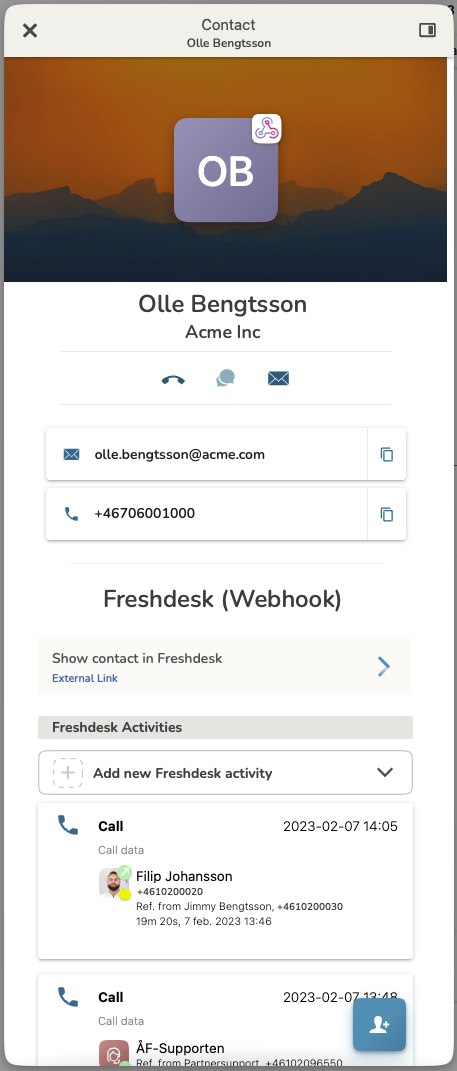
In the example above, we see look-up information for a contact received via a Webhook integration named “Freshdesk” set up for a M8Com customer. The webhook was called by the M8Com app on an incoming call to the M8Com customer from this contact’s number. The Webhook response from the middleware contained information about:
- The contact’s name, company, and email address
- A link to the contact’s page in the integrated CRM system (Freshdesk in this case)
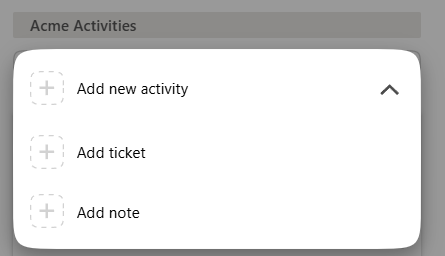
- Shortcut links for creating activities for the contact in Freshdesk
- A list of recent calls involving the contact and the customer
Automatic Call Logging
If automatic call logging is activated by the customer, the corresponding request end point is called by M8Com each time a relevant call is terminated and a call log item is created. See the specification below for the parameters being sent in the request. It is then up to the middleware to sync this call information with the integreated CRM system.
All phone calls for the customer trigger a webhook request when the call log is created, whether or not a corresponding number lookup request triggered a successful response or not. It is up to the middleware to decide if and how the call is logged in the connected CRM system(s). The customer can configure what kind of calls will trigger a webhook request in the webhook settings (from v2), e.g. only for calls to certain Answer Groups.
Details & limitations
- The correctness of data and response times for a Webhook integration has nothing to do with M8Com, as M8Com do not control the Webhook implementation.
- Looked-up data is cached and re-used by the M8Com app for 2 hours.
- A webhook request times out after 3 seconds.
Implementation Notes
This specification is for the implementer of a middleware, and describes the request and response formats that must be supported by the middleware.
Notes
It’s the responsibility of the Middleware implementer to make sure that the middleware is up and running at all times, and that the middleware is kept up to date regarding any relevant changes to the integrated CRM system(s) (e.g. API changes).
If a middleware is meant to serve several M8Com customers, the webhook request end point (the URL entered when setting up the Webhook for the customer’s M8Com account) set up for a specific customer must contain some kind of ID that can be used by the middleware to identify the customer and route look-up requests to the correct customer account in the integrated system. For example:
https://M8Com-middleware.provider.com/unique-customer-idAdding is not breaking 🚨
- New fields may be introduced to JSON data models over time and is not considered a breaking change. Integrators must ensure that their integrations ignore unknown fields by default.
Number & custom ID Lookup
REQUEST
With v2 of the API a secret is necessary to setup a webhook integration. The secret will be sent in the authorization header on all requests M8Com make, contact lookup and call log posting if enabled.
When a number lookup occurs we’ll send a HTTP GET request to your request end point. The following will be provided as part of the query string:
import express from 'express';

...

// Route matching the URL provided to M8Com
app.get('/M8Com/middleware/lookup', (req, res) => {
  // Validate against  the authorization header
  const { authorization } = req.headers;
  if (!authorization) {
    return res.status(401).json({ message: 'No authorization header provided' });
  }

  if (authorization !== 'Bearer YOUR_SECRET_HERE') {
    return res.status(403).json({ message: 'Invalid secret' });
  }

  // Read query string parameters
  const { fromNumber, toNumber } = req.query;

  // Call your database or API to get the contact information if any
  const res = await queryForContact(fromNumber, toNumber);
  return res.status(200).json(res);
});

...
Here’s an example when a custom ID is (optionally) activated.
import express from 'express';

...

// Route matching the URL provided to M8Com
app.get('/M8Com/middleware/lookup', (req, res) => {
  // Validate against the authorization header
  const { authorization } = req.headers;
  if (!authorization) {
    return res.status(401).json({ message: 'No authorization header provided' });
  }

  if (authorization !== 'Bearer YOUR_SECRET_HERE') {
    return res.status(403).json({ message: 'Invalid secret' });
  }

  // Read query string parameters
  const { fromNumber, toNumber, customIdentifier } = req.query;

  // Parse customIdentifier if provided (format: "customId:customValue")
  const [
    customId, // The custom identifier key from a M8Com Input Collector (e.g., "customer_id")
    customValue // The value the caller entered and you can use for lookup (e.g., "1234")
  ] = customIdentifier?.split(':') || [];

  // Call your database or API to get the contact information if any
  // You can now use fromNumber, toNumber, customId, and customValue in your query
  const result = await queryForContact(fromNumber, toNumber, customId, customValue);
  return res.status(200).json(result);
});

...
The request will always contain a “fromNumber”, “toNumber” will be supplied when it's applicable. The request will timeout after 3 seconds.
Experimental 🚨
An extra field ‘user’ is included in the request if experimental feature “Send user info” is ON (requires Superadmin permission to change). The data provided are subject to change and may differ in the final product.
| Field | Type | Optional | Description |
|---|---|---|---|
| user | Object | Yes | Information about the M8Com user that performs the lookup or is involved in a lookup call. Experimental: only available if experimental feature “Send user info” is on. |
User (Experimental)
| Field | Type | Optional | Description |
|---|---|---|---|
| firstName | string | No | First name of the M8Com user |
| lastName | string | No | Last name of the M8Com user |
| displayName | string | No | Display name of the M8Com user |
| userIds | UserId[] | No | The M8Com’s user’s login ids and types |
| id | string | No | User’s unique identifier |
UserId (Experimental)
| Field | Type | Optional | Description |
|---|---|---|---|
| type | string | No | type of userId: ‘email’ or ‘mobilePhone’ |
| username | string | No | id used for user login |
RESPONSE
Example
insightsContact.json 460 B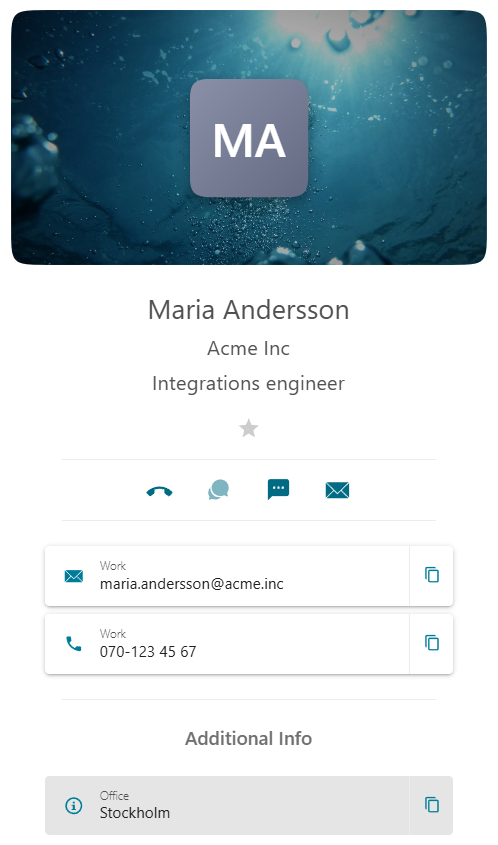
RESPONSE PARAMETERS
| Field | Type | Optional | Description |
|---|---|---|---|
| displayName | string | No | The contact’s display name |
| firstName | string | Yes | First name |
| lastName | string | Yes | Last name |
| avatarUrl | string | Yes | Custom image to be shown as avatar for the contact. Default is initials generated from the display name. |
| coverPhotoUrl | string | Yes | Custom image cover photo image |
| emails | Email[] | Yes | An array of emails that belong to the contact, Email |
| phoneNumbers | PhoneNumber[] | Yes | An array of phone numbers that belong to the contact, PhoneNumber |
| companyInfo | Object | Yes | Company information, CompanyInfo |
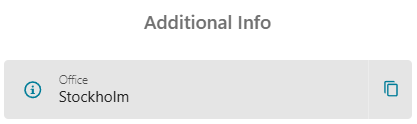
| fields | Field[] | Yes | Additional information about the contact, Field |
| activities | Activity[] | Yes | A list of activities, Note, Task, Call, Ticket, Deal, Appointment |
| createActivityUrl | CreateUrl[] | Yes | A list of these create url - deprecated |
| createActivityUrls | CreateUrl[] | Yes | A list of these create url |
| moreInfoUrl | string | Yes | A URL leading to a web page with more information about the contact. |
| acceptAction | string | Yes | A URL leading to a web page with more information about the contact (usually the same URL as moreInfoUrl). If the lookup reason is an inbound call to a user, and the user accepts (answers) the call on a computer (web browser or desktop app), the URL will be opened in a new tab in the user’s default browser. |
| Field | Type | Optional | Description |
|---|---|---|---|
| id | string | No | The email address |
| comment | string | Yes | Decorator text explaining where it’s used, e.g. Work/Personal |

PhoneNumber
| Field | Type | Optional | Description |
|---|---|---|---|
| id | string | No | The phone number |
| comment | string | Yes | Decorator text explaining where it’s used, e.g. Work/Personal |

CompanyInfo
| Field | Type | Optional | Description |
|---|---|---|---|
| name | string | Yes | Company name |
| title | string | Yes | The contacts title at the company |
Field
| Field | Type | Optional | Description |
|---|---|---|---|
| comment | string | No | Company name |
| title | string | No | The contact’s title at the company |
RESPONSE - ACTIVITIES
moreInfoUrl
A URL leading to a web page with more information about the contact.
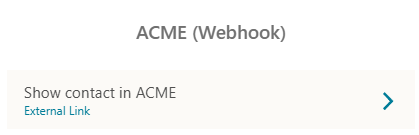
"moreInfoUrl": "https://loremIpsum.com/contact/maria-andersson"| Field | Type | Optional | Description |
|---|---|---|---|
| moreInfoUrl | string | Yes | URL leading to the contact in your external CRM system. |
Activities
A list of up to 10 activities per type, type has to be one of NOTE, TASK, CALL, TICKET, DEAL.
Activities are sorted on timestamp, newest first.
Note
note.json 308 B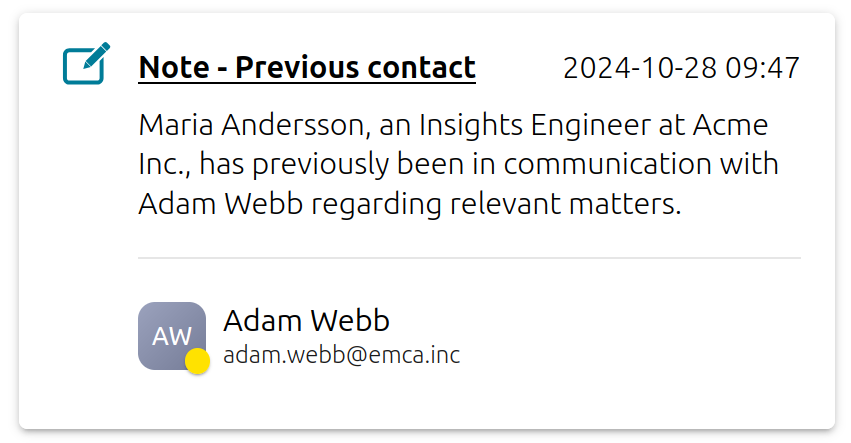
| Field | Type | Optional | Description |
|---|---|---|---|
| type | string | No | NOTE |
| body | string | No | Note body, any text you’d like to display |
| timestamp | number | No | Unix timestamp, should be in milliseconds |
| header | string | Yes | This text will be appended to the default header: Note - “Your header here” |
| customHeader | string | Yes | If you don’t want “Note” to be displayed in the header you can fully override it by sending your own header here. |
| associatedUser | string | Yes | |
| link | string | Yes | URL | When included the header will act as a link |
| markdown | boolean | Yes | If set to true the body will be parsed as markdown. |
Task
task.json 404 B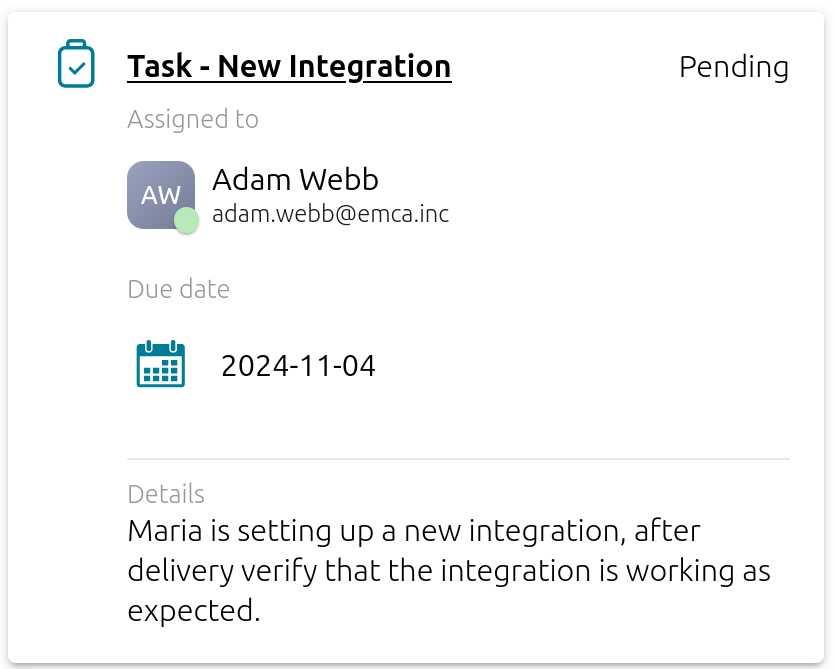
| Field | Type | Optional | Description |
|---|---|---|---|
| type | string | No | TASK |
| body | string | No | Task body, any text you’d like to display |
| timestamp | number | No | Unix timestamp, should be in milliseconds |
| dueDate | number | No | Unix timestamp, should be in milliseconds |
| header | string | Yes | This text will be appended to the default header: Task - “Your header here” |
| customHeader | string | Yes | If you don’t want “Task” to be displayed in the header you can fully override it by sending your own header here. |
| customDescription | string | Yes | Replace “Task body” with your own text |
| status | string | Yes | Text describing task status, will not be shown if task is marked as “done” |
| done | boolean | Yes | Will replace status with a green checkmark when true |
| assignedUser | string | Yes | |
| link | string | Yes | URL | When included the header will act as a link |
| markdown | boolean | Yes | If set to true the body will be parsed as markdown. |
Call
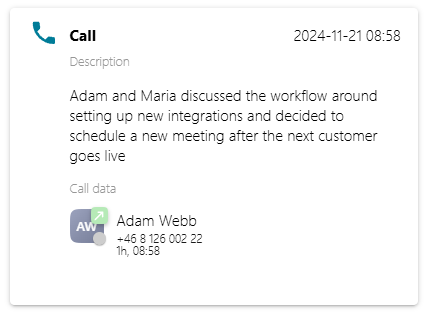
| Field | Type | Optional | Description |
|---|---|---|---|
| type | string | No | CALL |
| body | string | No | Task body, any text you’d like to display |
| timestamp | number | No | Unix timestamp, should be in milliseconds |
| toNumber | string | no | Callee |
| fromNumber | string | no | Caller |
| duration | number | no | Duration of the call, should be in milliseconds |
| startTime | number | No | Unix timestamp, should be in milliseconds |
| customHeader | string | Yes | If you don’t want “Call” to be displayed in the header you can override it by sending your own header here. |
| customDescription | string | Yes | Replaces the default header text for the call body |
| link | string | Yes | URL | When included the header will act as a link |
| markdown | boolean | Yes | If set to true the body will be parsed as markdown. |
Ticket
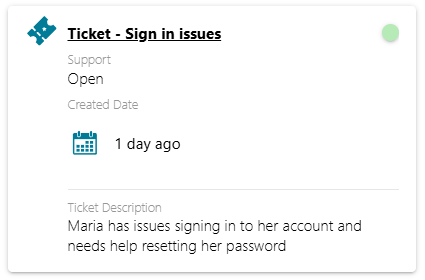
| Field | Type | Optional | Description |
|---|---|---|---|
| type | string | No | TICKET |
| body | string | No | Ticket body, any text you’d like to display |
| timestamp | number | No | Unix timestamp, should be in milliseconds |
| createdDate | number | no | Unix timestamp, should be in milliseconds |
| priority | string | Yes | HIGH, MEDIUM or LOW, defaults to LOW |
| header | string | Yes | This text will be appended to the default header: Ticket - “Your header here” |
| customHeader | string | Yes | If you don’t want “Ticket” to be displayed in the header you can override it by sending your own header here. |
| customDescription | string | Yes | Override “Ticket Description” with your own text |
| pipeline | string | Yes | Header text for pipelineStage |
| pipelineStage | string | Yes | Text |
| ticketLink | string | Yes | URL | When included the header will act as a link - deprecated |
| link | string | Yes | URL | When included the header will act as a link |
| markdown | boolean | Yes | If set to true the body will be parsed as markdown. |
Deal
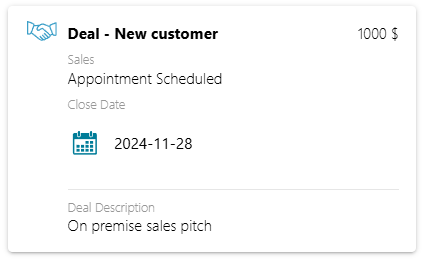
| Field | Type | Optional | Description |
|---|---|---|---|
| type | string | No | DEAL |
| body | string | No | Deal body, any text you’d like to display |
| timestamp | number | No | Unix timestamp, should be in milliseconds |
| closeDate | number | no | Unix timestamp, should be in milliseconds |
| currency | string | Yes | String, currency type |
| amount | number | Yes | Deal value |
| done | boolean | Yes | Will add a small checkmark to the deal in the upper right corner |
| header | string | Yes | This text will be appended to the default header: Deal - “Your header here” |
| customHeader | string | Yes | If you don’t want “Deal” to be displayed in the header you can override it by sending your own header here. |
| customDescription | string | Yes | Override “Ticket Description” with your own text |
| pipeline | string | Yes | Header text for pipelineStage |
| pipelineStage | string | Yes | Text |
| dealLink | string | Yes | URL | When included the header will act as a link - deprecated |
| link | string | Yes | URL | When included the header will act as a link |
| markdown | boolean | Yes | If set to true the body will be parsed as markdown. |
Appointment
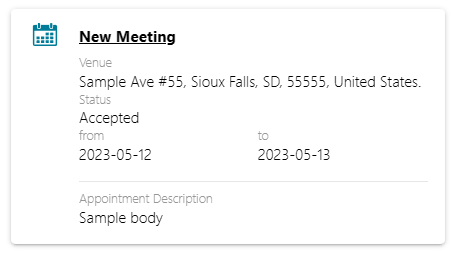
| Field | Type | Optional | Description |
|---|---|---|---|
| type | string | No | APPOINTMENT |
| timestamp | number | No | Unix timestamp, should be in milliseconds |
| startDate | number | No | Unix timestamp, should be in milliseconds |
| endDate | number | No | Unix timestamp, should be in milliseconds |
| allDay | boolean | Yes | Appointment covers the whole day |
| body | string | No | Body, any text you’d like to display |
| venue | string | Yes | Where the appointment will take place. |
| header | string | Yes | Header of the activity |
| customDescription | string | Yes | Override body header with your own text |
| status | string | Yes | Text here will be put under a “Status” header |
| link | string | Yes | URL | When included the header will act as a link |
| markdown | boolean | Yes | If set to true the body will be parsed as markdown. |
createActivityUrl
A shortcut to the integrated system so that a click on the link leads directly to the Create function for an activity of the specified type (e.g. a NOTE), for the contact which the looked-up number belonged to.
| Field | Type | Optional | Description |
|---|---|---|---|
| name | string | No | Name of the button |
| url | string | No | Where the users should be linked to |
Markdown
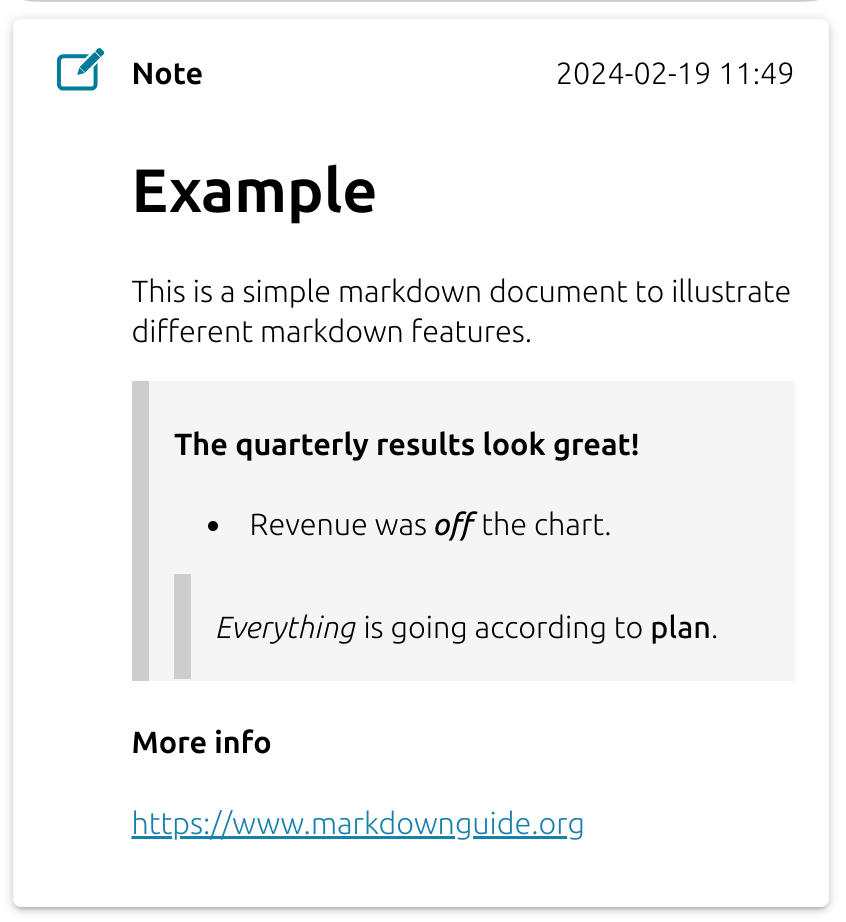
It is possible to style the activity body using markdown. Follow this link for examples on what you can do and how to structure the body. We support most of the features listed, images are not supported and HTML will not be processed only displayed as text.
Example
================
This is a simple markdown document to illustrate different markdown features.

> #### The quarterly results look great!
> - Revenue was ***off*** the chart.
>>  *Everything* is going according to **plan**.

#### More info
<https://www.markdownguide.org>
Example
{
	type: 'NOTE',
	...restOfTheNoteData,
  body: MARKDOWN,
  markdown: true,
}
Automatic Call Logging
REQUEST
If auto log calls is enabled a copy with some of the information contained in the call log will be posted to the designated URL.
We’ll send a HTTP POST request to your request end point. The event will be in the Content-Type: application/json format:
Request body
| Field | Type | Optional | Description |
|---|---|---|---|
| fromNumber | string | No | The callers number. |
| toNumber | string | No | The number that was dialed. |
| duration | number | No | The call length in milliseconds |
| startTime | number | No | Unix timestamp, milliseconds, when the call started |
| callType | string | No | Inbound | Outbound. This should be seen as if it’s from the CRM contact’s perspective. So If someone from M8Com calls a user in your CRM it will be logged as an inbound call to that CRM user. |
| itemType | string | No | INCOMING_CALL - Inbound call that was answered (User & Answer Group) OUTGOING_CALL - Outbound call (User & Answer Group) MISSED_CALL - Inbound call that was not answered (User & Answer Group) BOUNCED_CALL - Inbound call to an answer group that bounced (Answer Group) DIVERTED - Inbound call to an answer group that was redirected (Answer Group) VOICEMAIL - Inbound call that ended up in voicemail (User & Answer Group) BC_VOICEMAIL - Inbound call to answer group that bounced and was sent to voicemail (Answer Group) BC_DIVERTED - Inbound call to an answer group that bounced and was redirected (Answer Group) Note: inbound & outbound in the case of this parameter is from the perspective of userId. |
| body | string | No | The contents of the body vary from call to call depending on how the call was transferred and what information we have available about the participants. More info |
| userId | string | No | User’s unique identifier (in v2+) |
| manualCallbackNumber | string | Yes | Only included when the caller requested a manual callback. The number to call back, which may differ from fromNumber. Available only in v3+. |
Body
Free text field that will include some of the following sections given that the conditions apply for this call. Every section will be on a new line.
| Format | Condition |
|---|---|
| referred to: {{ phoneNumber }} | Participant in the call transferred it somewhere. |
| referred by: {{ phoneNumber }} | The caller was transferred by someone before this |
| Call to user: {{ username }} ({{ phoneNumber }}) | Added if this call was from a CRM user to a M8Com user |
| Call from: {{ phoneNumber }} | Added if the call was from a CRM user to a M8Com user |
| Call from user: {{ username }} ({{ phoneNumber }}) | Added if this call was from a M8Com user to a CRM user |
| Call to: {{ phoneNumber }} | Added if the call was from a M8Com user to a CRM user |
| Call to answer group: {{ agName }} ({{ phoneNumber }}) | Added if this call was from the CRM user to an answer group. |
| Call from answer group: {{ agName }} ({{ phoneNumber }}) | Added if an agent from M8Com calls the CRM user as the answer group. |
| M8Com agent: {{ username }} | If it was an answer group call the agents name will be added here. |
| Call type: {{ callType }} | Always available |
| manual callback number: {{phoneNumber}} | The caller requested a manual callback. Available only in v3+. |
| Summary (If the call was recorded and CI is enabled a call summary will be appended to the end of the body. But with no header or any other leading text) | Call was recorded and CI is enabled for the recorder. Only available for v2+. |
Phone number
Phone number will for the most part be a regular phone number prefixed with country code e.g. +46 70 123 45 67. Though in the case that this is a call to a user that doesn’t have a real number it’ll instead be an ID representing the user.
Username
This will be an email address in the case that the user has one. If the user uses a phone number as username it will instead be the users first name followed by surname.